---
title: "Implementing a Static Flow on your website"
url: "https://kb.getflowbox.com/en/article/embedding-a-static-flow-on-your-website"
language: "en"
last_updated: "2026-08-03T15:25:19.620Z"
---
# Implementing a Static Flow on your website
How to embed a Static Flow into your website - the generic guide
To inject a Widget you've created in Flowbox you need to add a couple of small snippets to your website's templates.
Start out by including the `flowbox.js` script on your page by copying this snippet and pasting it in the `` element. This script declares all the required methods for Flowbox to run, **so it always needs to be executed first**:
```
```
Then, you can go ahead and use the `window.flowbox` function to display your Flows. To render a Flow on your webpage, copy and paste this snippet wherever you want the Flow to show up:
```
```
- The **container** property refers to an element on your page, in this case the `div` element with the`"js-flowbox-flow"` id.
- The **key** property is the Flow key. The easiest way to find this is by copying it from the "Copy Flow Key" option in the meatball (three-dot) menu in the Flows section:

- The **locale** property needs to be a combination of `language` and `region` codes: e.g. `en-EU` , `en-GB`, `sv-SE` or `es-ES`. It serves two purposes. Firstly, it is used to translate the default texts within the Flow to the selected language. Secondly, it specifies the catalog from which the Flow should fetch data for assigned products, such as product titles, currency, and product links.
The values you need to use for the locale parameter can be found under the "**Market**" column in the [**Products**](https://app.getflowbox.com/commerce/catalogs) section.
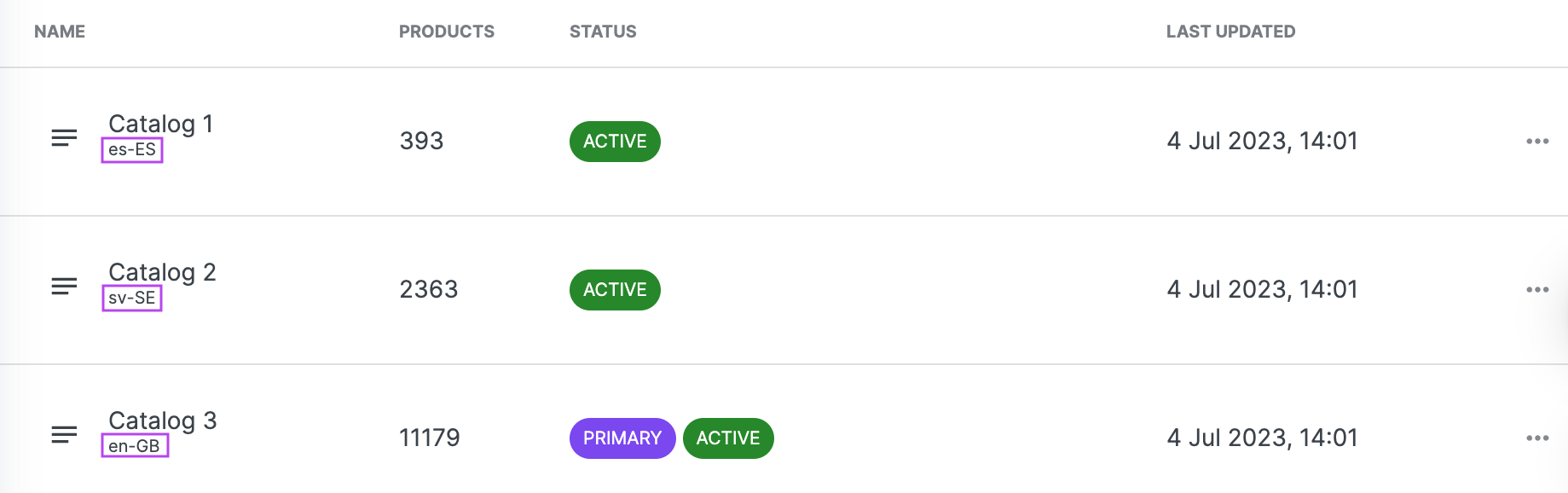
> Please also make sure to use `language-COUNTRY` instead of `language_COUNTRY`. For more info on which languages we support, please [visit this page](https://kb.getflowbox.com/en/article/changing-the-language-of-your-flow). If you pass in an unsupported locale, buttons and text will be displayed in English.
* * *
### Content Security Policy (CSP) Error

Content Security Policy (CSP) is a W3C standard providing a layer of protection against Cross-Site Scripting (XSS). CSP policy allows blocking/allowing content from specified domains and avoiding the content coming from unapproved origin.
If you see an error message that states that the Flowbox script could not load due to Content Security Policy, you will need to add Flowbox to your CDN whitelist.
## Additional resources
- [Advanced settings and methods for Flows](https://kb.getflowbox.com/en/article/advanced-settings-and-methods-for-flows)
- [Embedding multiple Flows on one page](https://kb.getflowbox.com/en/article/embedding-multiple-flows-into-one-page)
- [Implementing and Embedding a Dynamic Product Flow](https://kb.getflowbox.com/en/article/implementing-and-embedding-a-dynamic-product-flow)
- [Implementing and Embedding a Dynamic Tag Flow](https://kb.getflowbox.com/en/article/implementing-and-embedding-a-dynamic-tag-flow)