---
title: "Shopify - Manual integration: Creating a Dynamic Tag Flow"
url: "https://kb.getflowbox.com/en/article/shopify-manual-integration-creating-a-dynamic-tag-flow"
language: "en"
last_updated: "2026-10-15T09:52:09.591Z"
---
# Shopify - Manual integration: Creating a Dynamic Tag Flow
A guide to creating a Dynamic Product Flow manually in Shopify
Once you have [created a Flow in the Visual Marketing > Flows menu](https://kb.getflowbox.com/en/article/manage-your-flows) of the Flowbox dashboard, you can display the Flow on your Shopify page.
You can create 3 different types of Flows in Shopify:
- **Static Flow** – typically used on the home page and/or a community page.
- **Dynamic Tag Flow** – perfect for an Instashop or category pages.
- **Dynamic Product Flow** – create shoppable galleries on your product pages.
This guide will focus on the *Dynamic Tag Flow*.
## Configuring a Dynamic Tag Flow
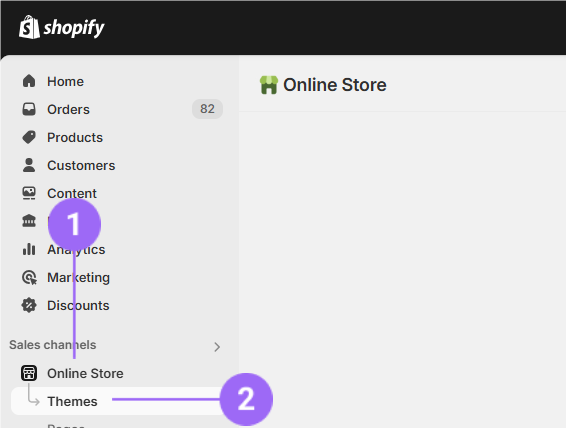
- First, log in to your Shopify account and go to 'Online Store' and click on 'Themes':
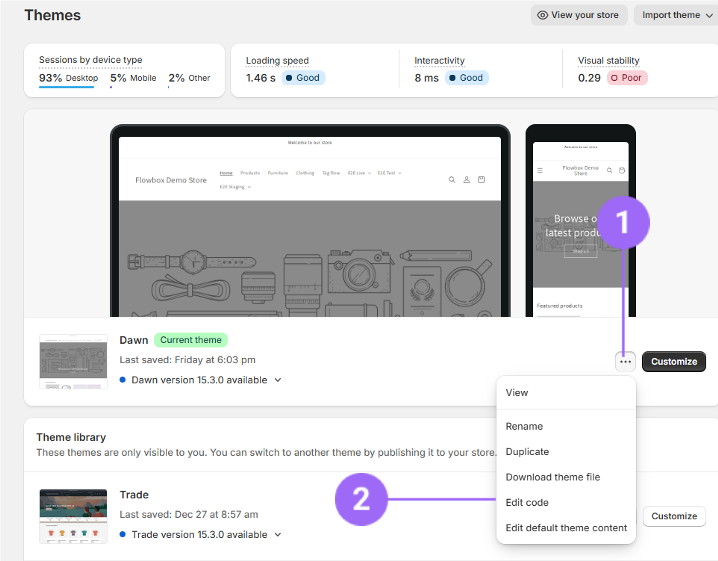
- Click on the 3 dots and 'Edit code':
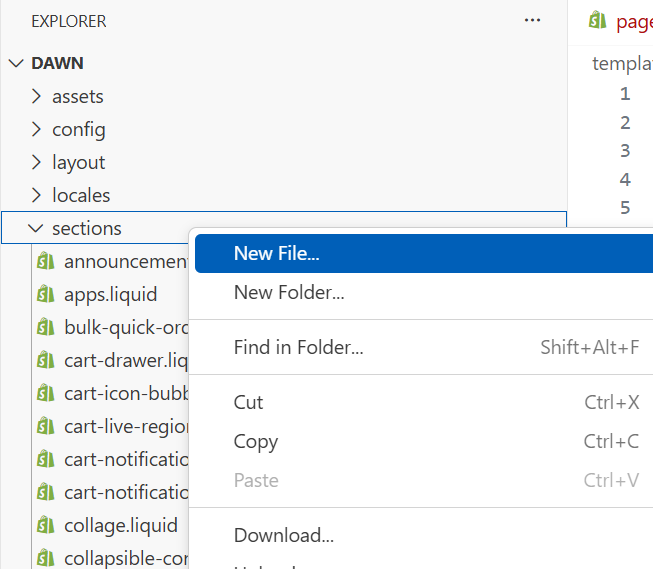
- Click on 'Sections'. Right-click, and then click on 'New file...':
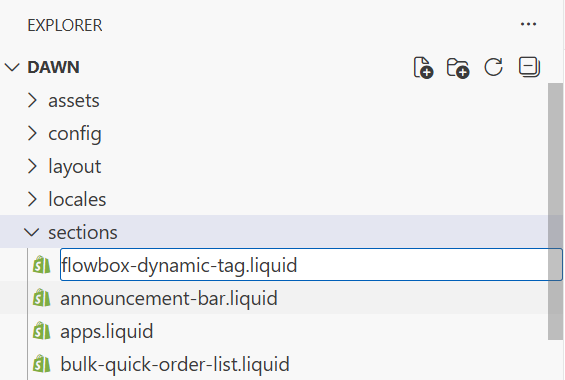
- Name your file **'flowbox-dynamic-tag.liquid'** and press enter. A file will be created in your 'sections' directory:
- Copy paste the following code an click on 'Save' (top-right corner):
```
{% assign flowbox_tags = '' %}
{% if section.settings.tag_selector_mode == 'collection' %}
{% if collection %}
{% assign flowbox_tags = collection.handle %}
{% endif %}
{% else %}
{% assign raw_tags = section.settings.manual_tags | split: ',' %}
{% assign clean_tags_array = '' %}
{% for tag in raw_tags %}
{% assign tag_cleaned = tag | strip %}
{% if clean_tags_array == '' %}
{% assign clean_tags_array = tag_cleaned %}
{% else %}
{% assign clean_tags_array = clean_tags_array | append: ',' | append: tag_cleaned %}
{% endif %}
{% endfor %}
{% assign flowbox_tags = clean_tags_array %}
{% endif %}
{% schema %}
{
"name": "flowboxDynamicTag",
"class": "flowbox-section",
"settings": [
{
"type": "text",
"id": "flowKey",
"label": "Flow Key"
},
{
"type": "text",
"id": "flowLocale",
"label": "Locale",
"default": "en-EU"
},
{
"type": "select",
"id": "tag_selector_mode",
"label": "Tag Source",
"options": [
{ "value": "manual", "label": "Manual Tag" },
{ "value": "collection", "label": "Collection Handle" }
],
"default": "manual"
},
{
"type": "text",
"id": "manual_tags",
"label": "Manual Tags (comma separated)",
"info": "Enter a single tag or multiple tags separated by commas. Used only if 'Manual Tag' is selected."
},
{
"type": "select",
"id": "operator",
"label": "Operator (for multiple tags)",
"options": [
{ "value": "AND", "label": "All the tags" },
{ "value": "OR", "label": "At least one tag" }
],
"default": "OR"
}
],
"presets": [
{
"name": "Dynamic Tag Flow",
"category": "Flowbox Widgets"
}
]
}
{% endschema %}
{% stylesheet %}
{% endstylesheet %}
```
> In this code, we're using a flow named '**Dynamic Tag Flow**'. If you want to change the name, make sure to update both the "name" fields within the schema section of the code.
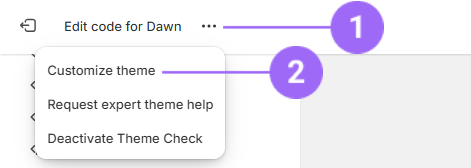
- Click on the 3 dots on top and on 'Customize theme':
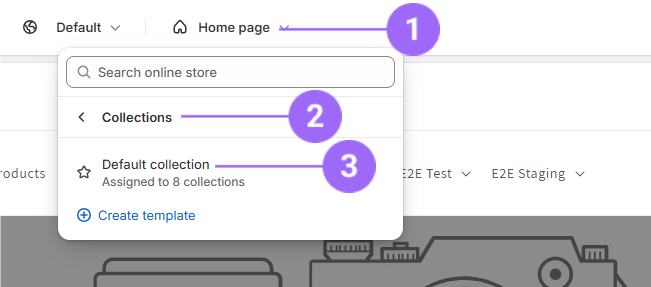
- You're currently on the Homepage. Switch to the Default Collection page (or the page where you want to implement the Flow):
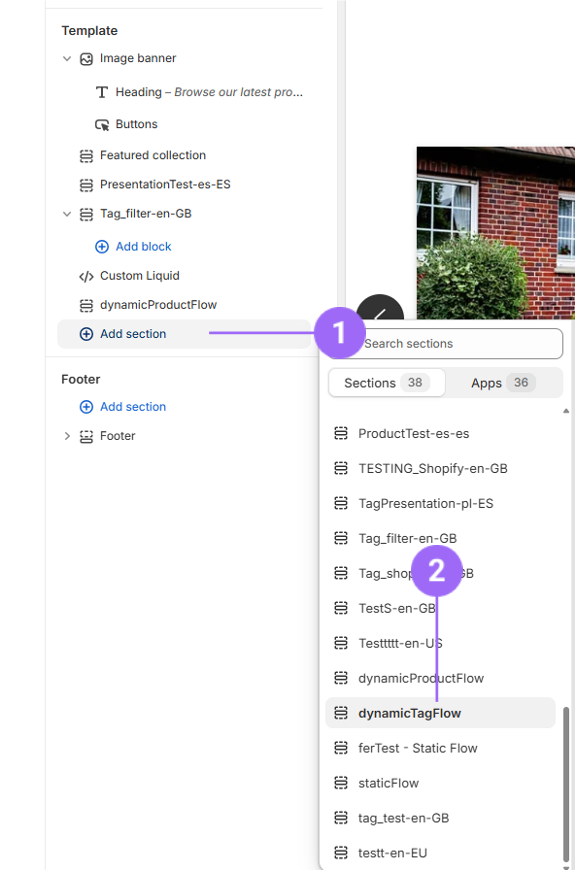
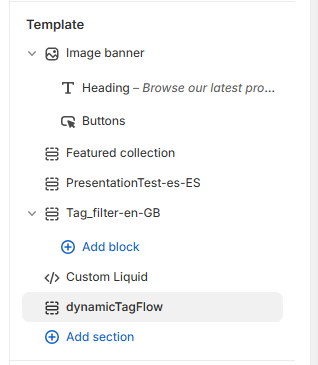
- To add the Flow to your page, click "Add section" and search your Flow by typing the name that was previously set up. Then, select it from the dropdown menu:
- Click on the newly added section:
- Add your flow-key, locale and choose a tag source. You can either use a collection handle from Shopify or manually define one or more tags:
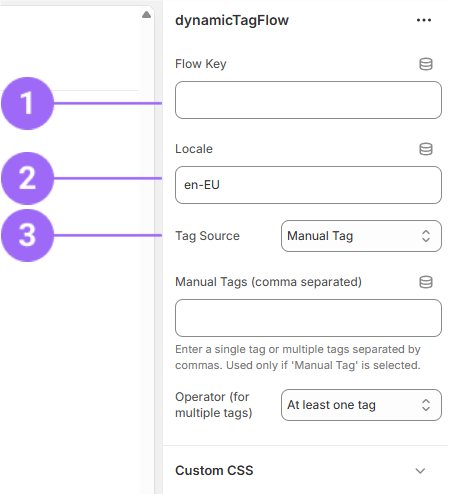
> Get the Flow Key by copying it from the **'Copy Flow Key'** option in the meatball (three-dot) menu in the Visual Marketing > Flows menu in the Flowbox dashboard:
> 
> You will see a default locale set to 'en-EU'. Please update this to match the locale used in [your Catalogs](https://kb.getflowbox.com/en/article/how-to-add-a-product-catalog-to-flowbox), as seen in [the "Catalogs"](https://app.getflowbox.com/commerce/catalogs) section from your Flowbox dashboard.
>
> The locale combines a language code and a region code, and serves two main purposes:
>
> 1\. Translate the widget's text and forms to the selected language.
> 2\. Specify the catalog from which we should fetch data for assigned products, such as the product titles, product links and the product price's currency.
>
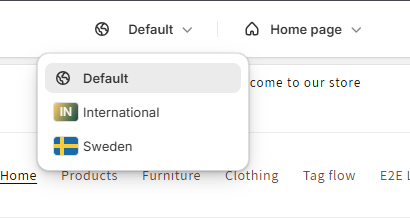
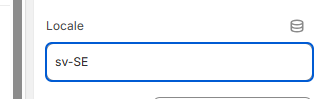
> If you wish to apply a different setup for a specific country, you can override the default settings as follows :
>
> 1\. Select the desired country:
> 
> 2\. Adjust the relevant settings (e.g., tags, locale, etc.):
> 
> 3\. Click **Save** to apply the changes
- **If you've selected manual tags**, enter one or more tags, separated by commas**:**
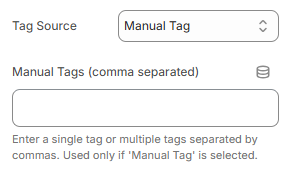
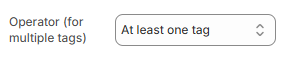
- **If you've selected manual tags and specified more than 1 tag**, specify the operator:
- Drag the flow to where you want to position it on the page, and then click 'Save' to see a preview of your Flow.

## More Shopify manual guides
- [Creating a Static Flow](https://kb.getflowbox.com/en/article/shopify-manual-integration-creating-a-static-flow)
- [Creating a Dynamic Product Flow](https://kb.getflowbox.com/en/article/shopify-manual-integration-creating-a-dynamic-product-flow)
- [Creating a Dynamic Tag Flow with Filter buttons](https://kb.getflowbox.com/en/article/shopify-manual-integration-creating-a-dynamic-tag-flow-with-filter-buttons)