
Countdown widget
Create time-limited campaigns to boost engagement and sales
What is the Countdown Widget?
The Countdown Widget is a powerful tool for creating time-limited sales campaigns. It allows you to display posts for 24 hours, offering exclusive deals before revealing the next one.
How It Works
- Select a mystery image and multiple posts.
- Each day, a new post is revealed, replacing the previous one.
- Posts can showcase a product or CTA, driving visitor engagement.
- After 24 hours, the revealed post is hidden, and the next one becomes available.
The Countdown Widget is a premium feature. Contact your Customer Success Manager (CSM) for activation.
How to Create a Countdown Widget
Once activated, the Countdown menu will appear under Visual Marketing > Distribution. To create a new Countdown:
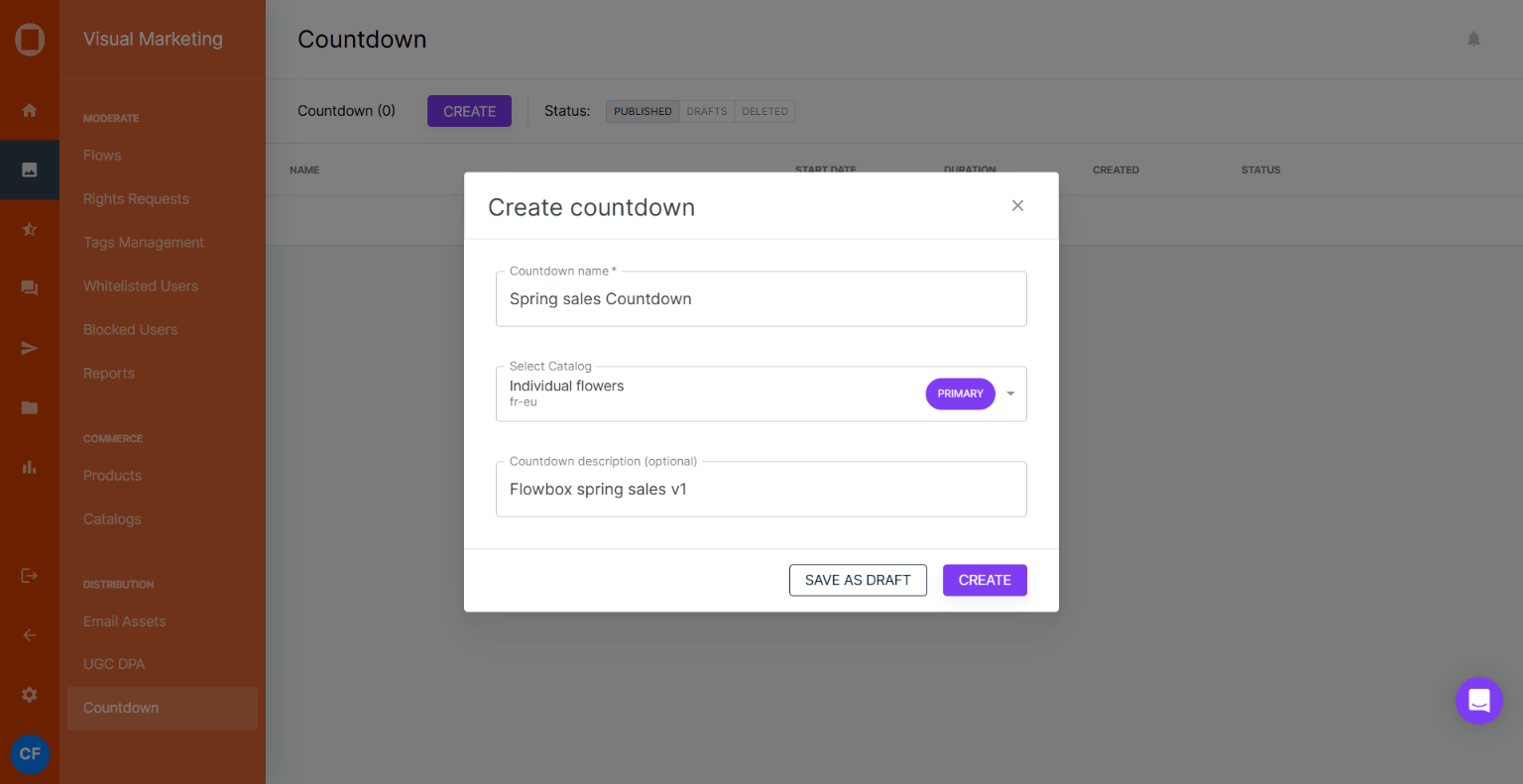
- Click Create in the Countdown menu.
- Enter a name for your Countdown.
- Select a product catalog for tagging products in your Countdown posts.
- (Optional) Add a description.
How to Add Posts to Your Countdown Widget
- In the Countdown menu, click on a post (mystery image).
- Each post corresponds to a specific day of the campaign.
- The number next to each post box indicates the day it will be revealed.
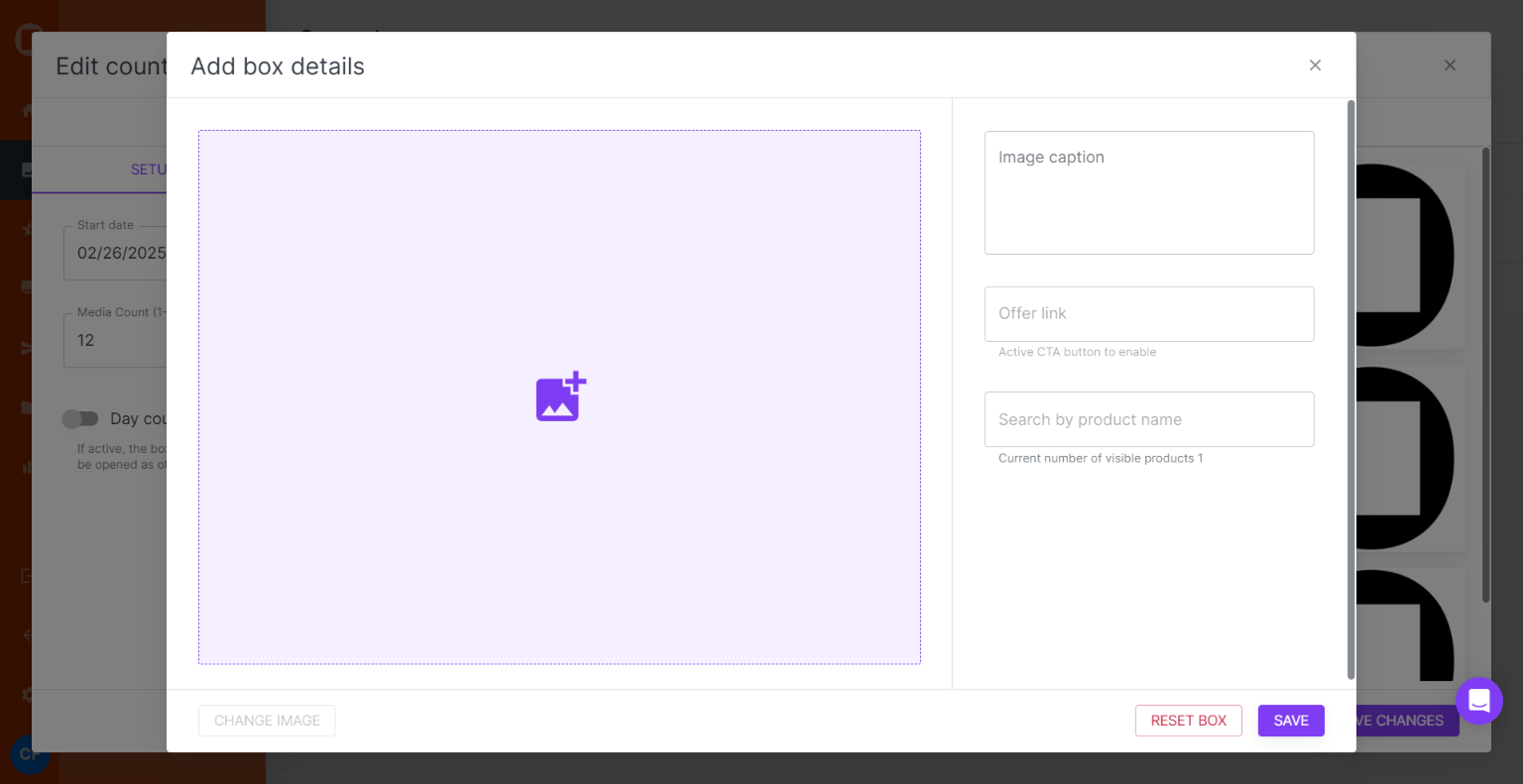
- In the pop-up window, configure your post:
- Select a media from your Library and add a caption.
- Add a CTA button and / or tag a product from your catalog.
- The post will be visible for 24 hours before the next one appears.
How to Configure Your Countdown Widget
Step 1: Set Up Countdown Behavior
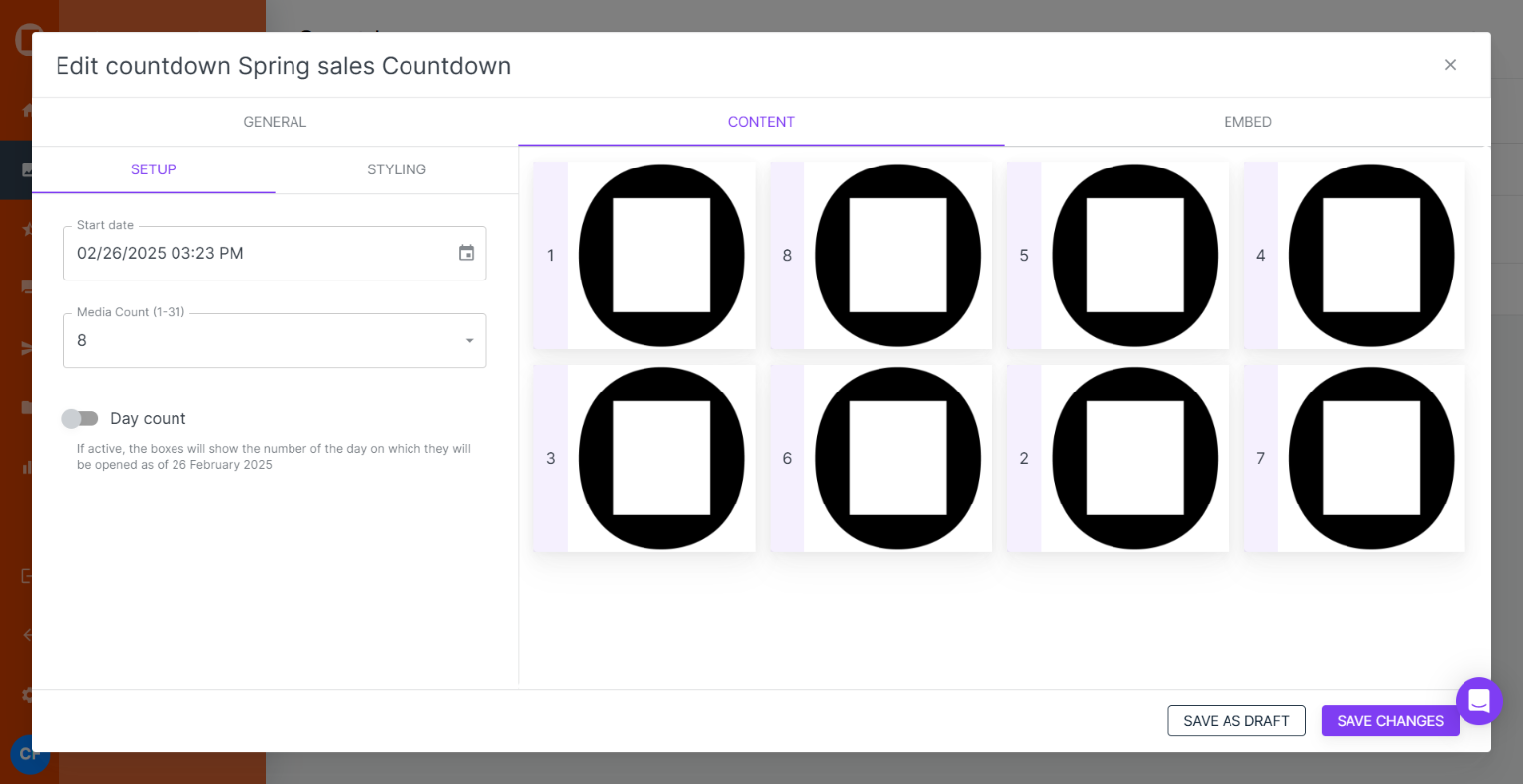
Navigate to Content > Setup to adjust:
- Start Date & Time – Select when the first media will be revealed.
- Media Count – Choose how many days/media your campaign will run.
- Day Count Display – Choose whether days start at 1 or follow the actual date.
Step 2: Customise the Countdown Widget
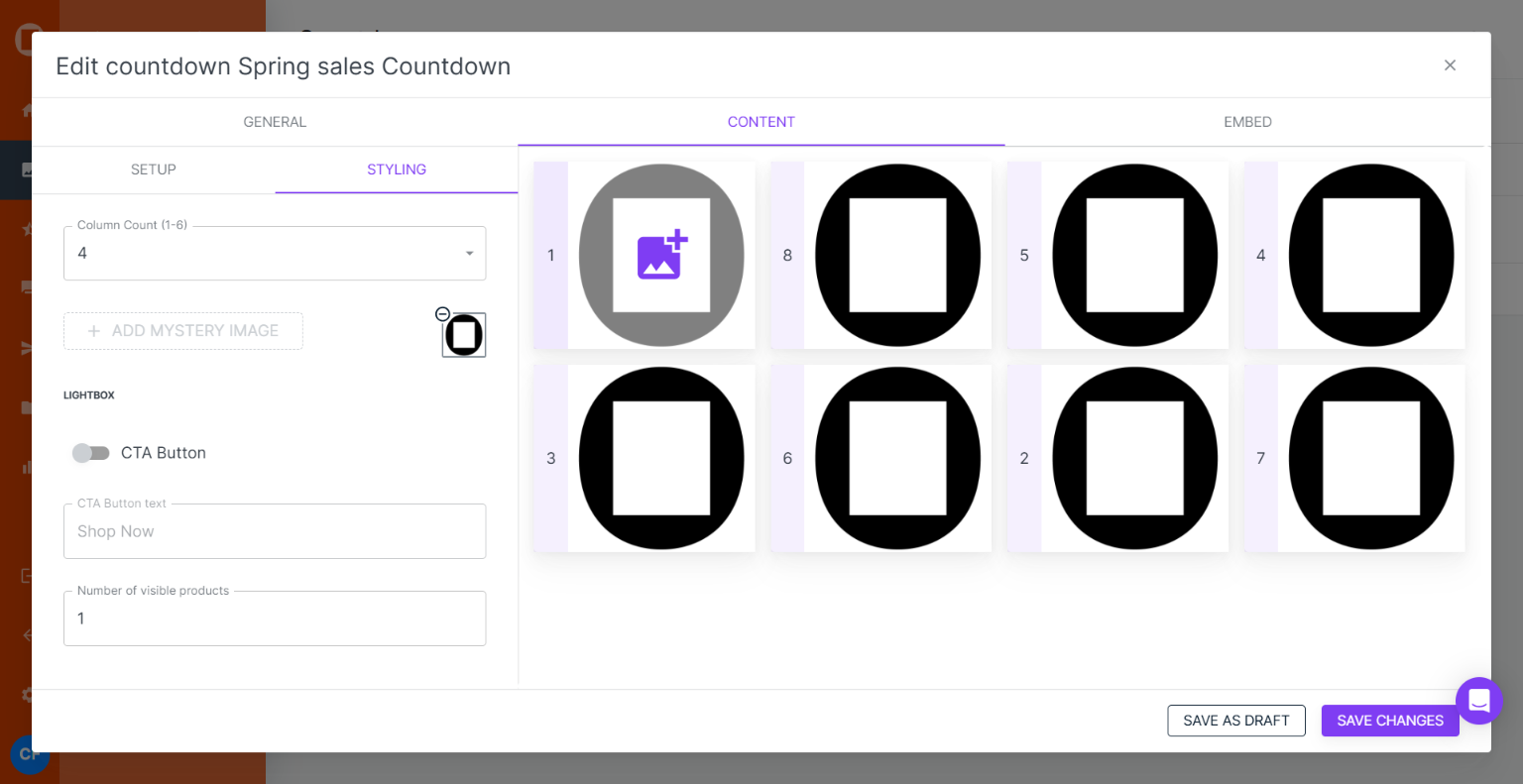
Go to Content > Styling to modify:
- Media Columns – Adjust from 1 to 6 columns.
- Mystery Image – Change the placeholder image before a post is revealed.
- CTA Button – Customise text, style, and placement.
- Tagged Products – Define how many products appear when media is revealed.
How to Embed Your Countdown Widget
- Go to the Embed section in the top-right corner.
- Click COPY HTML and paste the code into your website.
Embedding a Countdown Widget is as simple as embedding any other Flow.