
Shopify: add product to cart from widgets
Flowbox empowers you to boost your sales by allowing visitors to add products to their cart directly from the Flowbox widget. This simplifies the purchase process for your customers and creates a seamless shopping experience.
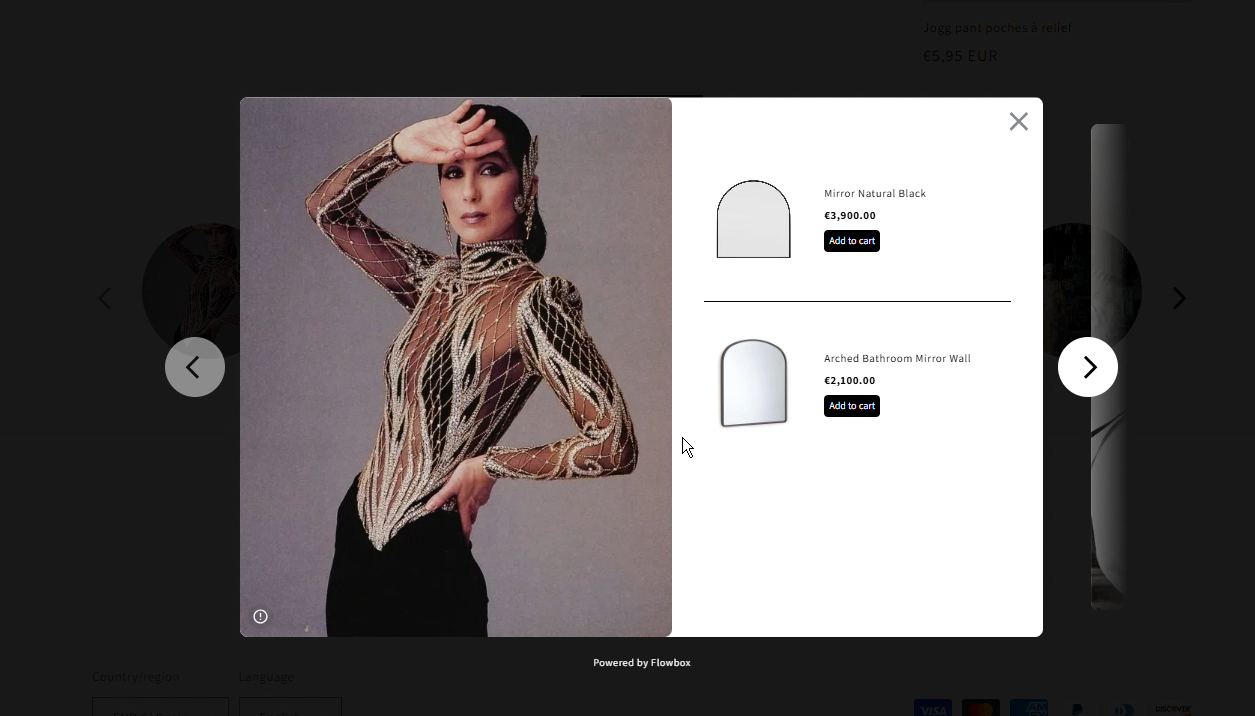
Please note that this feature requires a Shopify connection. If you haven't yet connected your Shopify account to Flowbox, click here.
How to enable add to cart on your widget
Add to cart is an add-on feature. To enable it, please contact your Customer Success Manager.
Once enabled, follow these steps to activate it on your widget:
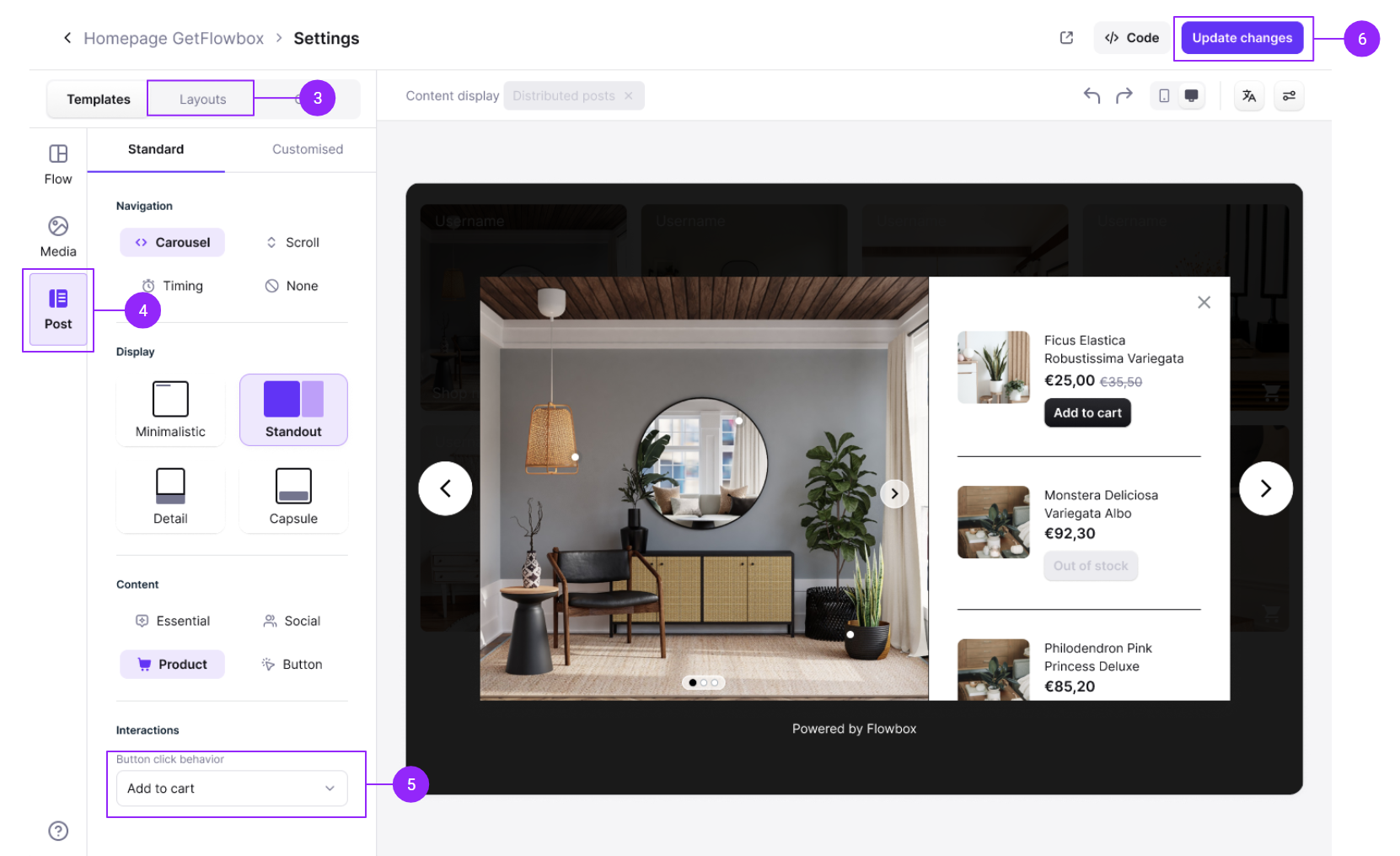
- From the Flowbox platform, go to Visual Marketing → Flows
- From the widgets list, click on Widget editor on the widget you wish to add the functionality
- In the widget editor, click on Layout on the upper tab menu
- Click on posts on the left menu
- In the Standard tab, scroll down to the Interactions section and select Add product to cart
- Click Update changes to save the setting.
Note: this option is only available when Product or Essential is selected as the Post content.
How it works on your live widget
Once enabled, visitors can click the Add to cart button directly on a post to add the selected product to their cart. If the product has multiple variants (size, color, or other options), the visitor will be prompted to select one before it's added to the cart.
Next step: learn how to embed Flowbox widgets on your Shopify store or connect your product catalog to get the most out of your Flows.