
Implement email Flows in Dartagnan
How to implement an email Flow in Dartagnan 📧
You can easily embed a Flow in email by copying and pasting the embed code in Dartagnan.
First, if you're not familiar with how to set up an email Flow, it's a good idea to read this general article first.
Step by step guide to embedding your Flow in Dartagnan (HTML)
- Log into your Flowbox account and select your Flow.
- Click on the 'Settings' (cogwheel) menu.
- In the left-hand styling menu, there is a setting for 'Email'. Switch the toggle on.
- Scroll down to 'Fallback URL' and input your preferred URL. NOTE: this needs to include 'https://'. Once a valid URL has been entered you will now see your images appear.
- Scroll back up to style your Flow. You can select how many rows and columns you want in your email Flow.
- The width can be set with both pixels (px) and a percentage (%) value. We recommend using '100%' as it will make the email Flow responsive.
- When you're done styling the flow, scroll down to 'View Email Embed Code'.
- Copy the full email embed code, and log into your Dartagnan account.
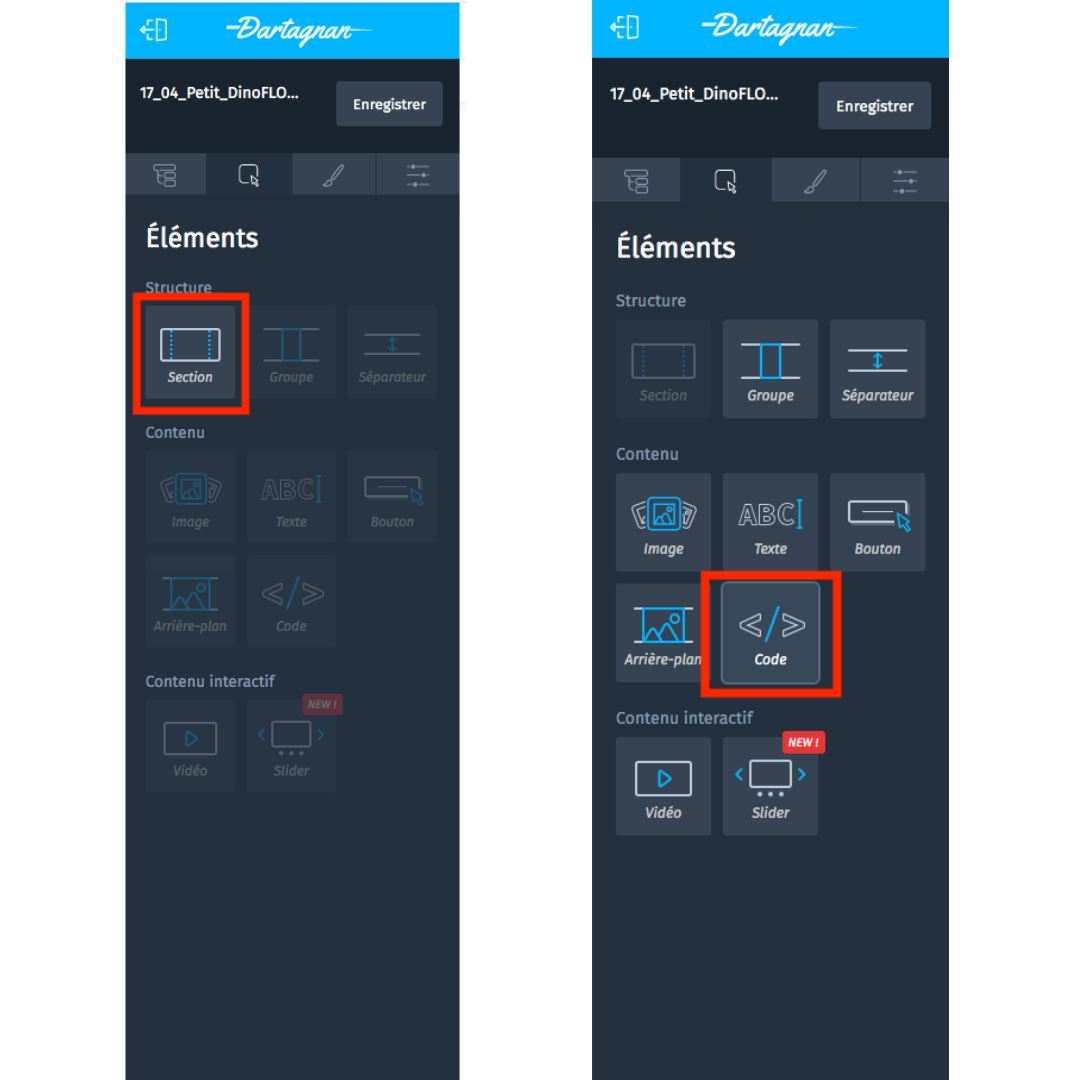
- Drag and drop a new section to your email template.
- Click to drag a Code block to your new section.
- Paste the Flowbox code into this section.
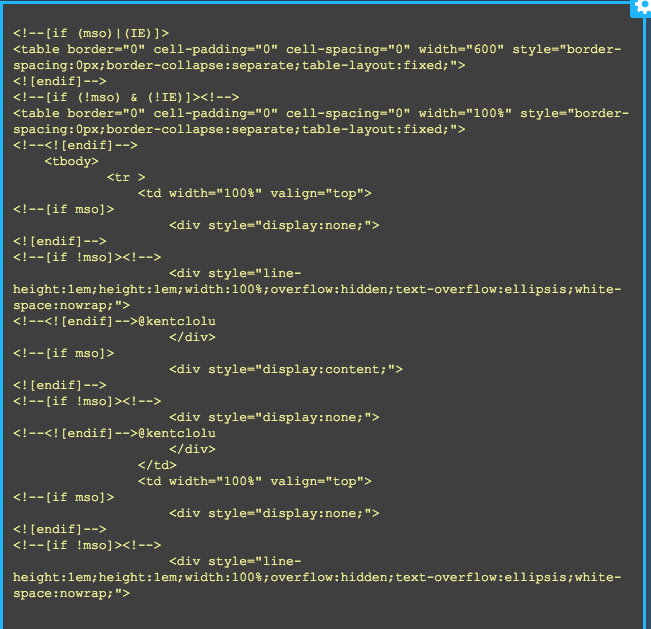
- The email is now ready to be sent - NOTE the Flow images might not be visible at this stage (you might only see a code block) but rest assured they will show up in previews.

- Make sure you have set the width of the Flow in Flowbox to use ‘%’ instead of ‘px’ to make it responsive.
- If anything is not inlined, double-check the settings on your email template.
- Go to our general Flow in Email article if you need help setting up your email Flow.