
Flow widget design: filter & sort content
Decide how to filter and sort the UGC in your Flow
Flowbox gives you full control to create pixel-perfect UGC Flows — not just in design and layout, but also in how content is displayed.
This article explains how to filter and sort UGC within your Flow.
Access filter and sorting settings
- Go to Visual Marketing → Flows.
- Click Settings on the Flow you want to edit.
- On the Flow settings page, click the Setup button (top right corner).
A modal will open where you can manage filters, sorting, and advanced options.
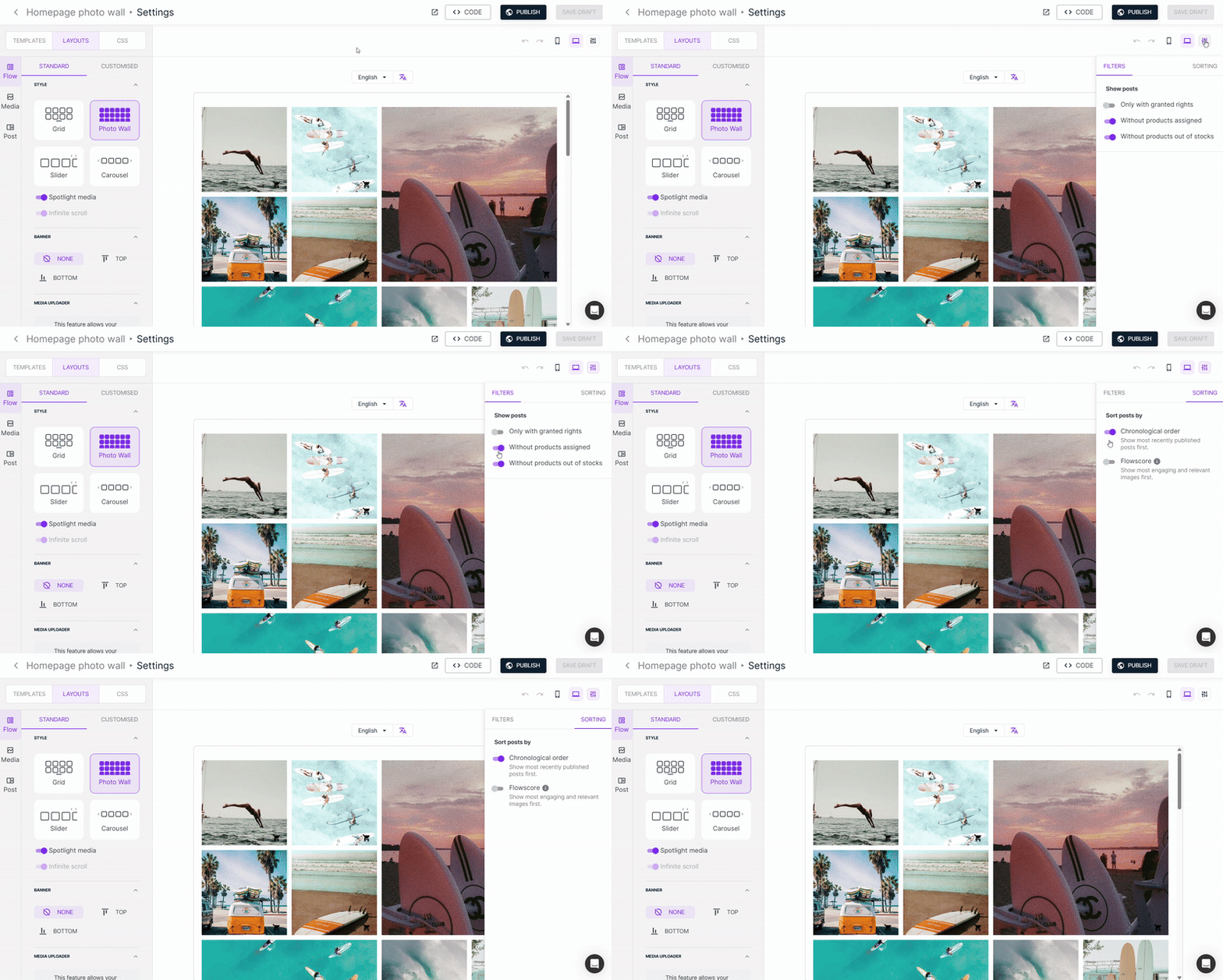
Filter and sort content
Inside the Flow Setup modal, you’ll find three tabs: Filters, Sorting, and Advanced.
In Filters, you can control which posts are included in your Flow:
- Rights: show or hide posts depending on rights request status.
- Products: filter posts with or without products linked.
- Product status: include only posts with products currently in stock
Sorting lets you decide the order in which posts appear:
- Chronological: show the most recently approved posts first.
- Flowscore: prioritize posts based on engagement and relevance - thanks to Flowbox’s exclusive ranking algorithm. Learn more about Flowscore here.
Advanced settings
In the Advanced tab, you can:
- Set a minimum number of posts to display the widget: if the Flow has fewer posts than your defined minimum, it will remain hidden.
- Enable or disable web analytics events exchange between Flowbox and Google tools (GTM and GA).
- Fallback Flow: choose another Flow as a backup source in case there’s not enough media for your dynamic content (like tags or products).
- Fallback sequences: define rules for how Flowbox should fetch additional content when a product-specific Flow doesn’t have enough media.
Learn more about fallback Flows and fallback sequences here.