
Flow design: post section
The Post section controls how your pop-up (or “post modal”) looks and behaves.
This is the final step of your UGC widget - where visitors can explore the content in detail, see related products, and interact with your brand more deeply.
Access the post section
Go to Flow Editor → Layout → Post in the left-hand menu.
You’ll find two main tabs: Standard and Customize.
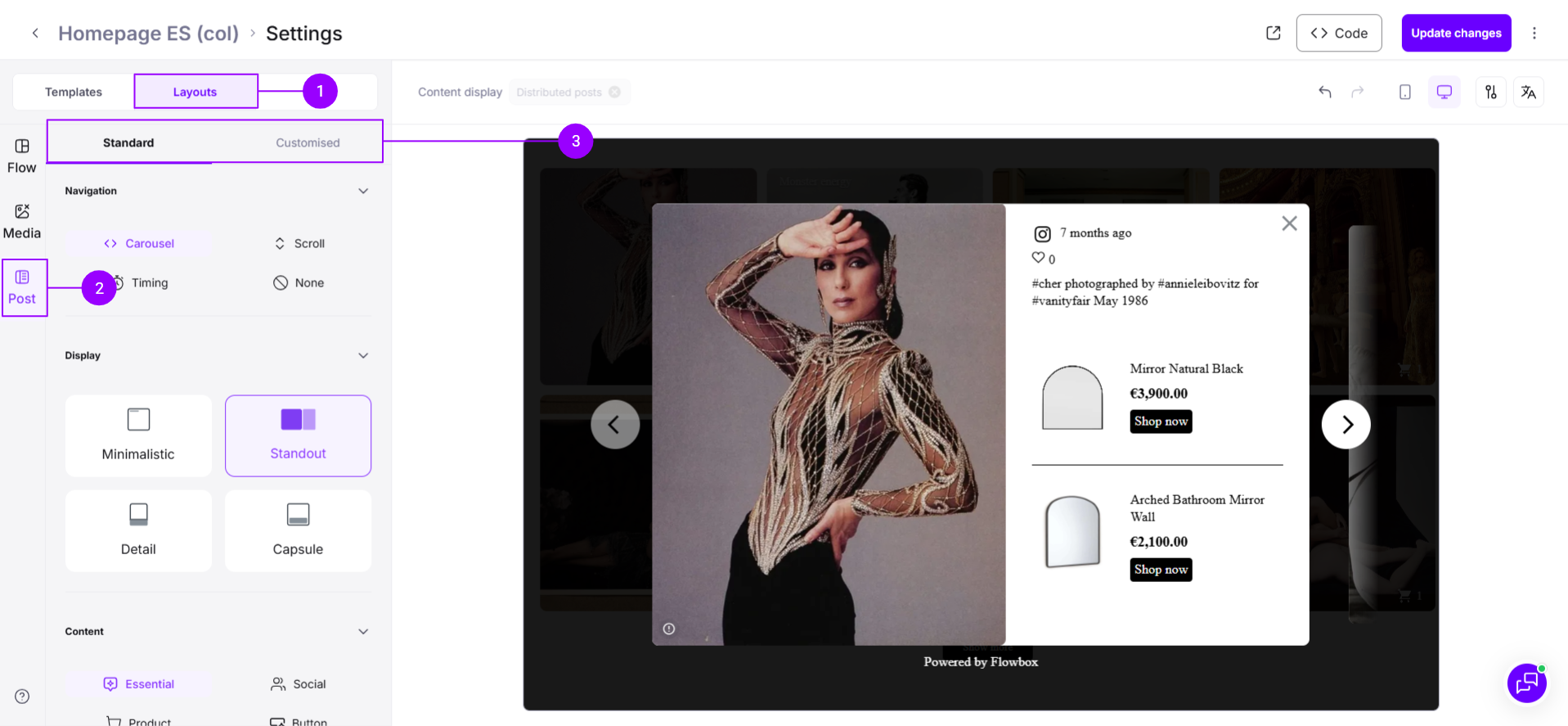
Navigation
In the Standard → Navigation tab, choose how visitors move between posts in the modal:
- Carousel – side arrows appear on both sides of the media
- Scroll – ideal for mobile, allows vertical scrolling
- Timing – similar to Instagram Stories; the next post appears automatically after a short delay
- None – disables navigation entirely
In the Customize tab, you’ll find extra settings depending on your navigation style:
- Show or hide arrows (Carousel or Scroll)
- Adjust post display time (Timing)
Display & content
These options define how the post modal is structured and what information appears inside it.
Display styles
- Minimalistic – subtle text overlay on the media
- Standout – dedicates a clear space for content next to or below the media
- Details - highlight key information below the media
- Capsule - display information in a capsule within the media container
Content types
- Essential – creator username, post type (video/image), first product name…
- Social – social media icons, likes, platform logos…
- Product – product name, price, image…
- Button – adds a custom CTA button…
Interactions
- Button click behavior – open product page in the same or a new tab, add poduct to visitor cart
Advanced customization (customized tab)
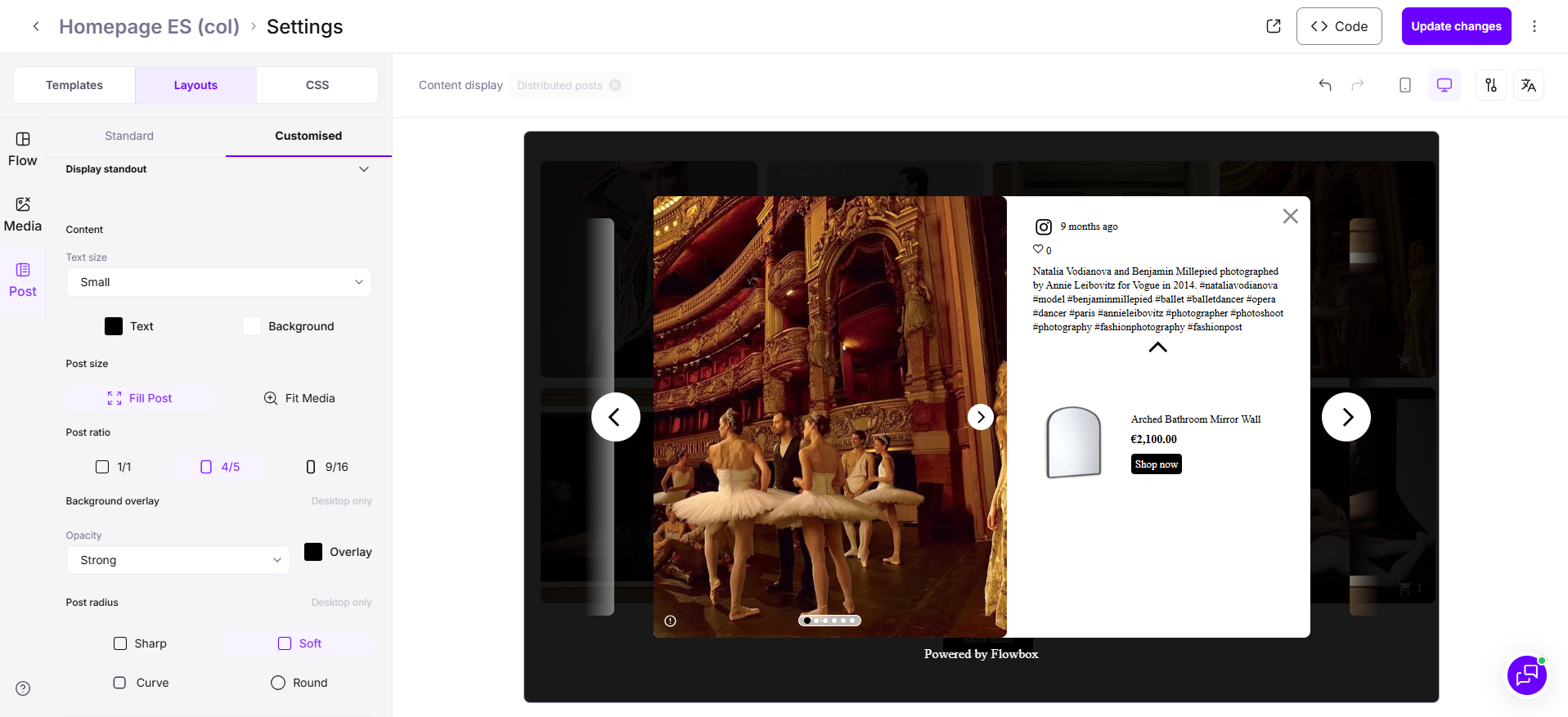
In the Customize tab, refine how your modal looks and feels:
- Button details – change button text, background color, and border radius
- Post details – adjust post radius, aspect ratio, and size (fit or fill)
- Content styling – edit text size, color, and background
…and what specific content you wish to display or hide, depending on your content type:
- Product: name, price, sale price, sale badge, product status (in stock / out of stock), reviews…
- Essential: content creator username and likes
- Social: content creator username, likes, comments, publication date, caption…
- Button: text size and color, background color, button radius…
Continue improving your Flow with these related guides:
- Customize all media in your Flows
- Design your Flow structure
- Filter and sort content in your Flow
- Embed your Flow on your website