
Shopify: connect your Shopify account to Flowbox
Flowbox's Shopify app
Connect Flowbox and Shopify to bring the power of UGC directly into your online store. With the Flowbox app, you can embed UGC widgets into your store and automatically install the checkout script to leverage user-generated content into your business.
Shopify app access requires activation by your Customer Success Manager. Please contact us if you have any questions.
Connect your Flowbox account to a Shopify store
The connection between Flowbox and Shopify is initiated from the Flowbox platform. Please note that our app is not available on the Shopify App Store — this is the only way to establish the connection.
When installing the Shopify app, Flowbox will automatically also install and config the checkout script to collect widget information. To avoid further issues, make sure checkout script was not previously installed.
Follow these steps to connect your accounts:
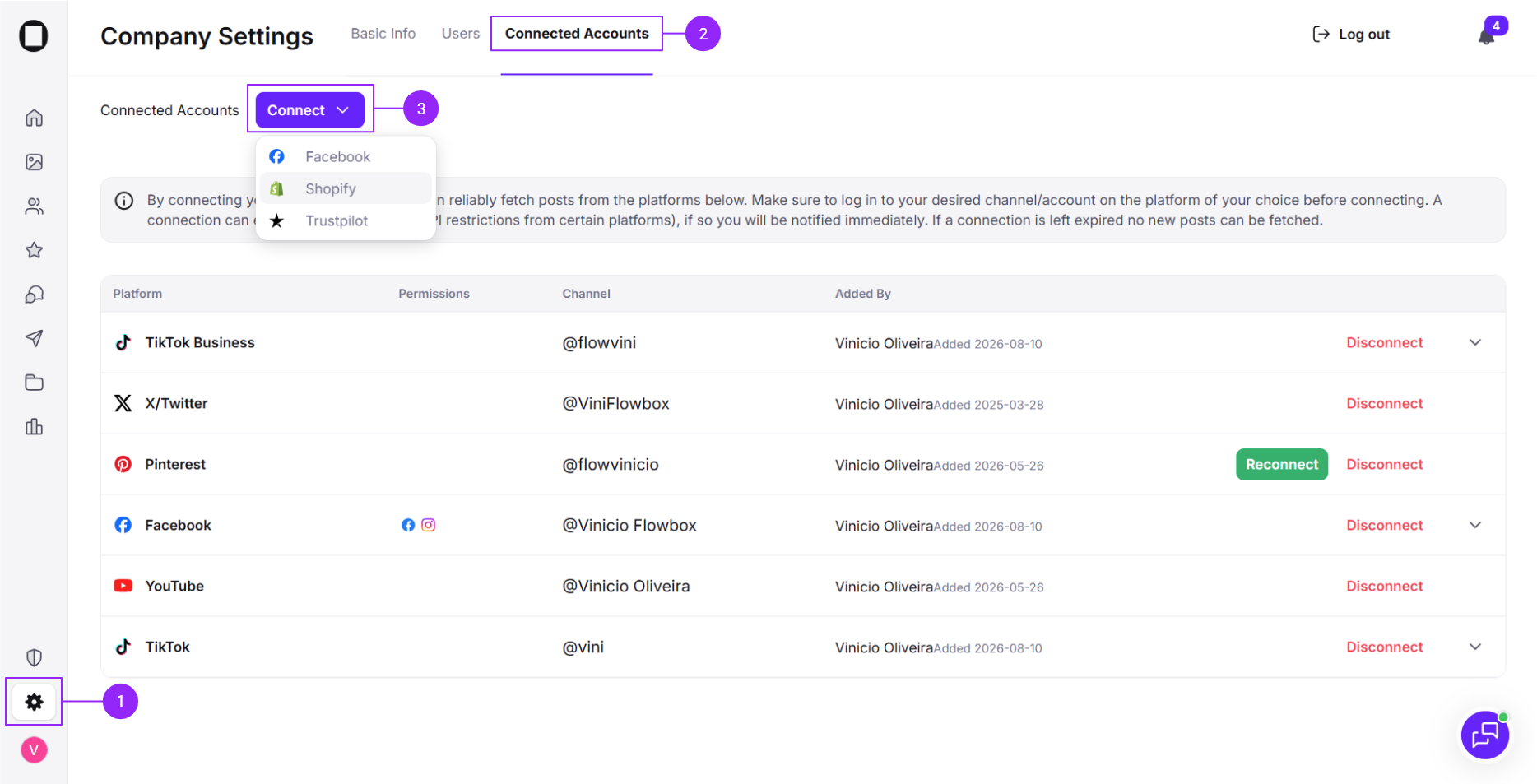
- Click on the Settings (cogwheel) icon in the bottom-left corner to open company settings.
- Click on the Connected accounts tab.
- Click on the purple Connect button, then select Shopify.
- Follow the steps prompted by the Shopify integration flow.
How to check if checkout script is properly installed
To identify if Flowbox checkout script is properly installed, do the following steps on your Shopify account once Flowbox app installation is completed:
- In your Shopify admin, click on Settings in the bottom-left corner.
- Click on the Customer events option on the menu on the left.
- Flowbox should be on the App pixels list with the Connected status.
Please note that the checkout script is configured based on the information provided when uploading the product catalog(s) to Flowbox when it comes to the unique product identifier (product id or SKU). If necessary, reach out to your CSM prior to installing or re-installing the Flowbox application
How to reinstall the checkout script
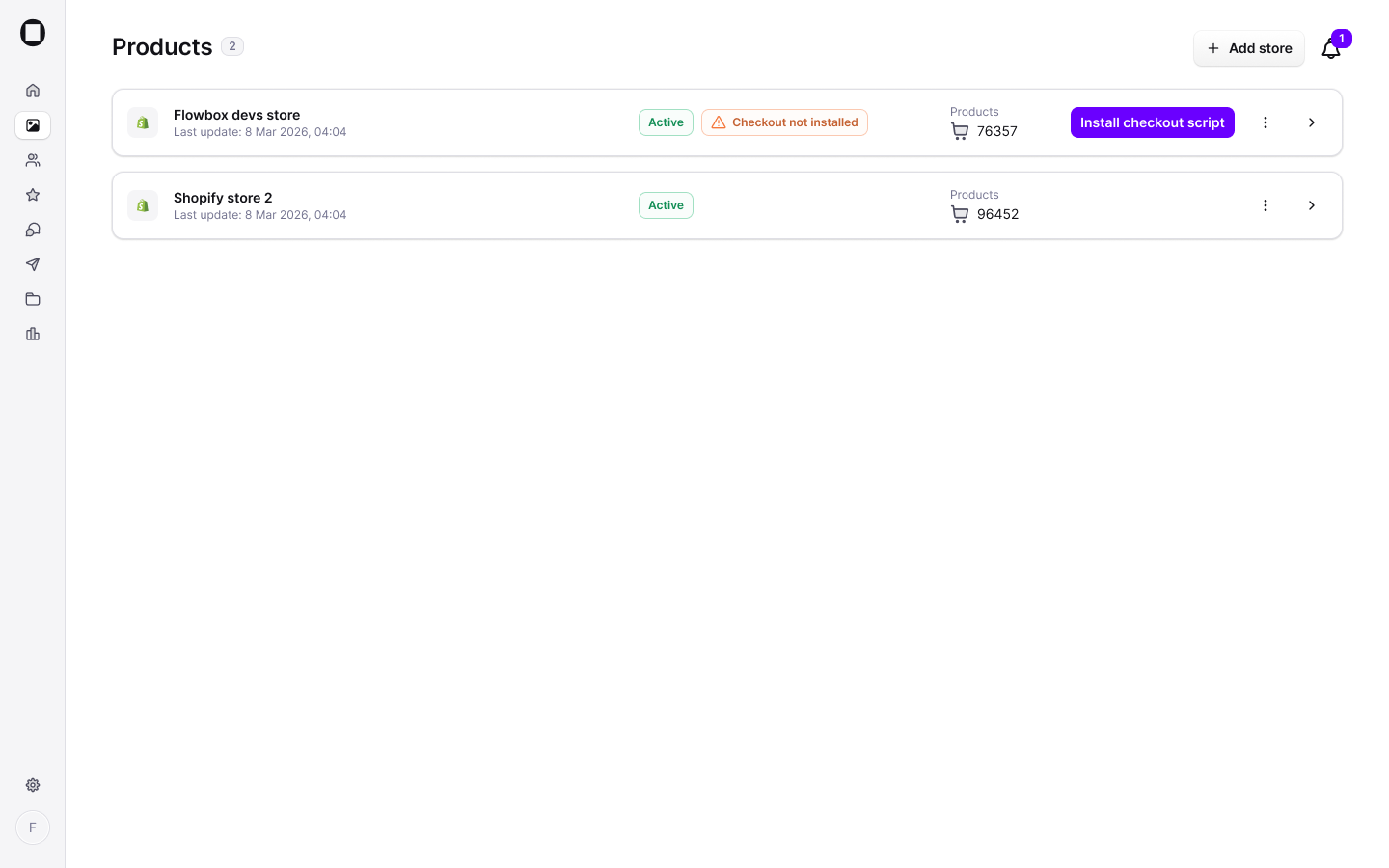
The checkout script may fail to install correctly during your initial Shopify setup. This typically happens if you don't have a product catalog created in Flowbox at the time of installation. When this happens, you can trigger the installation again from the products page. Once you've created at least one product catalog and connected your Shopify store, the option to retry checkout script installation becomes available automatically.
Disconnect your Flowbox account from a Shopify store
To uninstall the Flowbox app from your Shopify store, follow these steps:
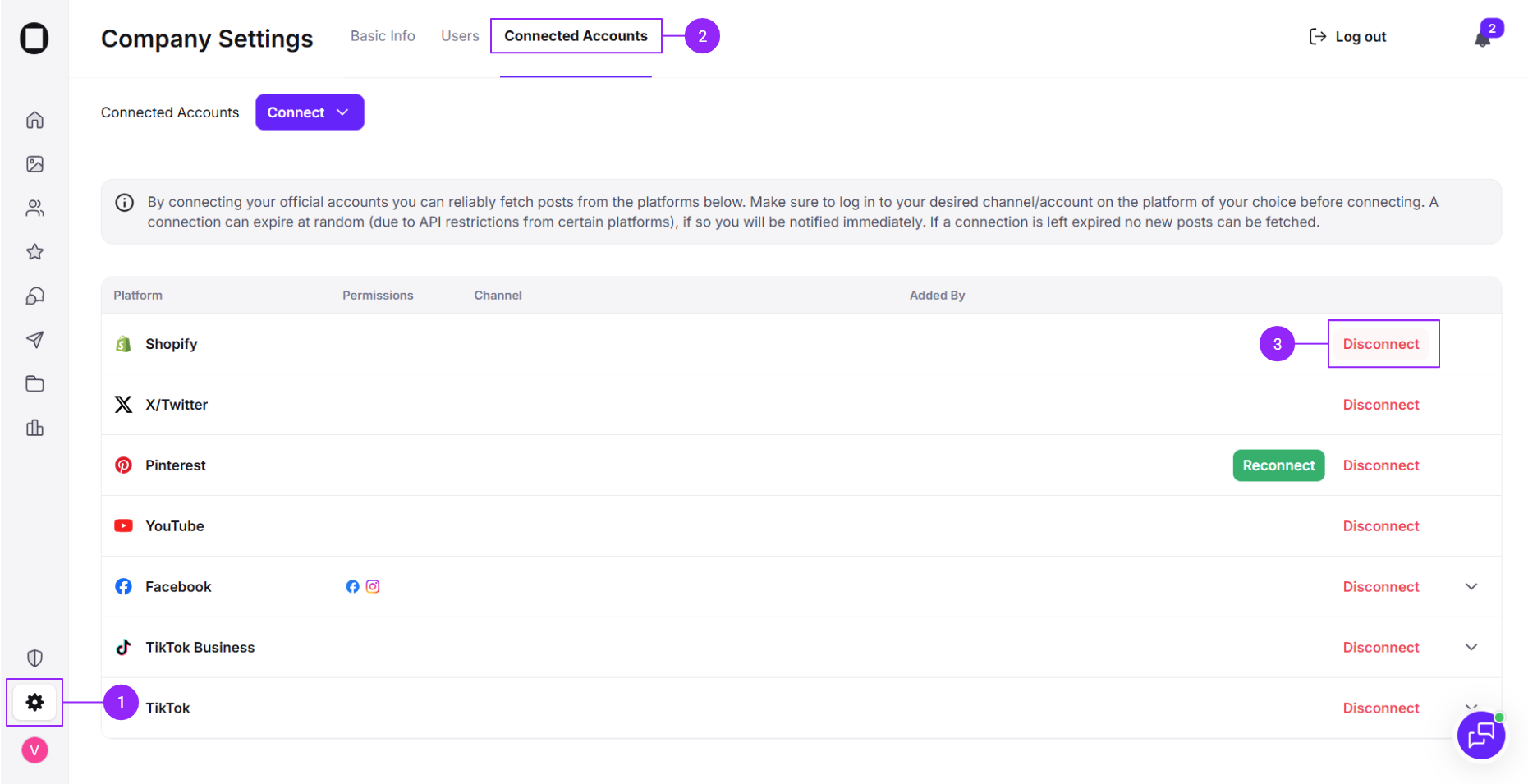
- From the Flowbox homepage, open Settings by clicking the cogwheel icon in the left sidebar.
- Select the Connected Accounts tab.
- Find your Shopify connection and click Disconnect.
- Confirm the action.
Next step: once your Shopify account is connected, learn how to import your products to Flowbox and how to embed Flowbox widgets on your Shopify store.