
Shopify: embedding widgets on your Shopify store
Using the Flowbox Shopify app
The Flowbox Shopify app allows you to embed Flows directly into your store without any coding knowledge. The connection to Shopify is triggered from the Flowbox platform, as long as the feature is activated for your account.
Before proceeding, make sure you have a Shopify account already connected to Flowbox. If you haven't done this yet, please follow the steps in Shopify: connect your Shopify account to Flowbox first.
For code-based integration, refer to the following developer guides instead: Shopify - Manual integration: Creating a Static Flow, Creating a Dynamic Product Flow, and Creating a Dynamic Tag Flow.
Embedding a Flowbox widget in Shopify
You can add four different types of Flows to your Shopify store:
- Static Flow – typically used on the homepage or a community page.
- Dynamic Tag Flow – ideal for an Instashop or category pages.
- Dynamic Tag Flow with buttons – ideal for category pages with on screen navigation
- Dynamic Product Flow – creates shoppable galleries on product pages.
To add a Flow, follow these steps in your Shopify admin:
- Click on your store, then click Edit theme.
- In the left-hand menu, click on Add a section.
- In the pop-up that appears, click on the Apps tab.
- Select Flowbox Static Flow, Flowbox Dynamic Product Flow, Flowbox Dynamic Tag Flow or Flowbox Dynamic Tag Flow with buttons.
- In the Flowbox menu on the lower left side, select the flow you wish to embed from the list
- Click Save to apply the changes.
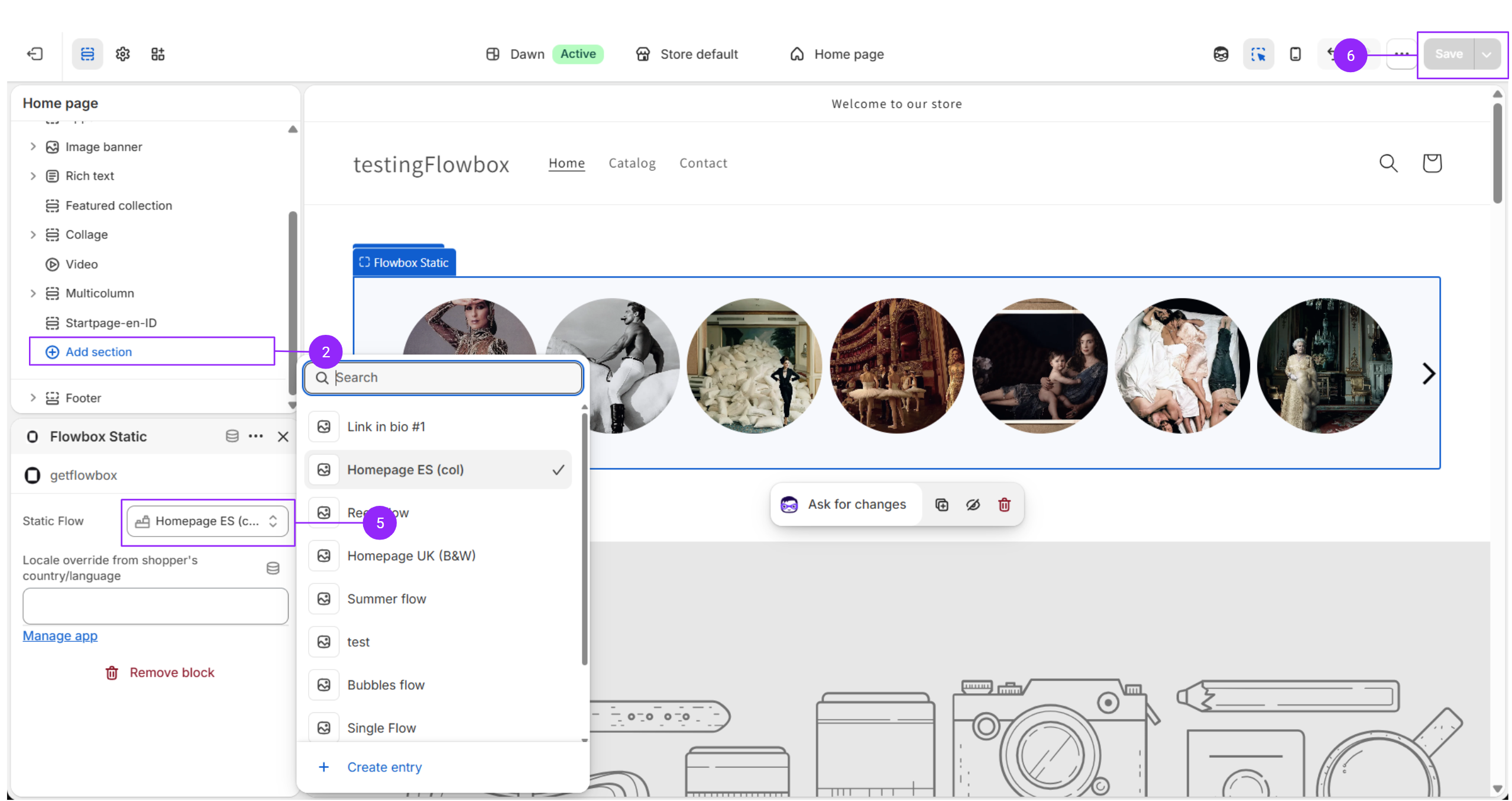
Note on the locale configuration
We highly recommend leaving the Locale override field empty. By doing so, Flowbox will dynamically set the language and currency based on the visitor's browser location. If you wish to override this automatic configuration, enter the locale that matches the one used in your Flowbox Catalog. Language and region codes should be separated by a dash — for example, nl-NL (Dutch, Netherlands) or sv-SE (Swedish, Sweden).
The locale serves two purposes:
- It translates the widget's text and forms into the selected language.
- It specifies which catalog Flowbox uses to fetch product data such as titles, links, and prices.
You can find your catalog's locale in the Catalogs section of your Flowbox dashboard.
Flows list is not visible?
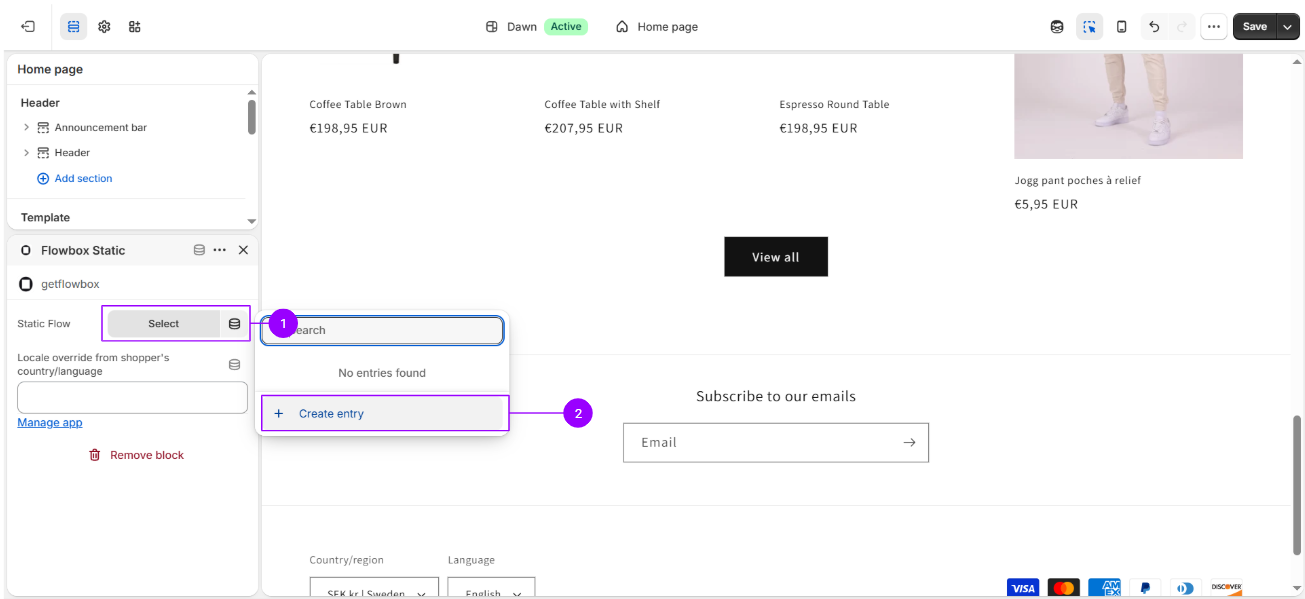
If you don't see your Flows list in the left sidebar, there may be a sync issue between Flowbox and Shopify. You can still embed manually:
- Click Select and Create entry
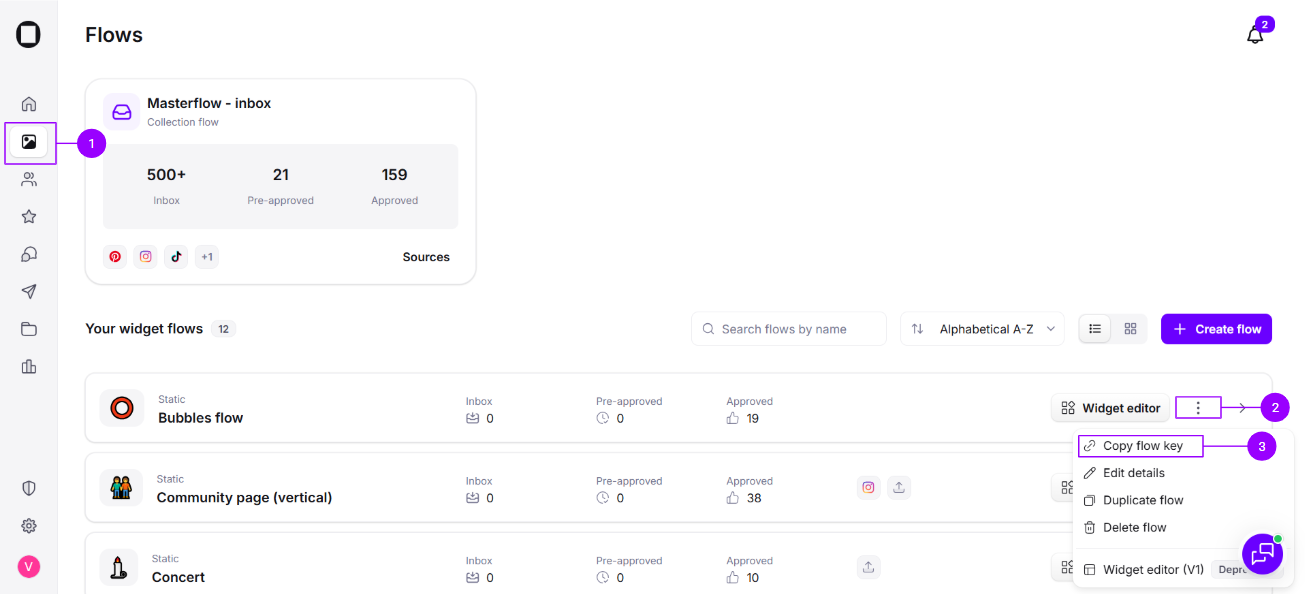
- Enter your flow name and flow key manually
- Click Save
Find flowkey and flow name in the Flowbox platform. Both information can be found on your Flows page by clickling on the three dots next to one of your widgets on the list.
Special configuration: Dynamic Product Flow
When embedding a Dynamic Product Flow, you also need to specify the Product Identifier. This determines how products are matched between Shopify and Flowbox.
Select either Product ID or Variant SKU, making sure it matches the identifier used when importing your products into your Flowbox Catalog.
Click Save to apply the changes.
Special configuration: Dynamic Tag Flow
When embedding a Dynamic Tag Flow, you also need to configure two additional fields: Tag Source and Operator.
Tag Source — choose between:
- Manual tags: manually input the tags you want the Flow to use for fetching content.
- Collection handle: the Flow will automatically use the Shopify collection handle to determine the tags.
Operator (only applicable when more than one manual tag is specified):
- All the tags: only posts that contain all of the specified tags will be displayed.
- At least one tag: posts that match at least one of the specified tags will be displayed.
Click Save to apply the changes.
Special configuration: Dynamic Tag Flow with buttons
When embedding a Dynamic Tag Flow with buttons, you also need to configure two additional fields: Filter button and All button text.
- Filter button: add one button configuration per line, following the format Label|tag_value, where `Label` is the text to be displayed on the filter button and tag_value its corresponding tag configured in the Flowbox platform.
- All button text - button label for “All” tags (no filter applied)
Want to explore the full potential of your Flowbox widget? Learn how to configure an add to cart button and increase your conversion