
Magento 2 / Adobe Commerce Extension: Installation and setup
Compatibility and requirements
The Flowbox Extension for Adobe Commerce is compatible with all Magento versions starting v2.4.4. Other requirements include at least PHP 7.4 and Symfony version 5.4.
Installation
The Flowbox Extension for Magento can be acquired from Adobe Commerce Marketplace by clicking here. The latest version is v1.1.1. If you're experiencing issues with your current Flowbox Extension, we recommend you to update it to it's latest version.
Once you've acquired the extension, you will need to follow the instructions in Adobe Commerce Marketplace in order to install it through Composer. You will need to input the following command in your terminal:composer require getflowbox/flowbox:1.1.1
Once it's installed, you might need to flush your site's cache in order to use the extension. You can do so from System > Cache Management.
Extension Setup
You can access the Flowbox Extension main settings in the Stores > Configuration section. Once you're there, scroll through the left menu and click on Catalog > Flowbox.
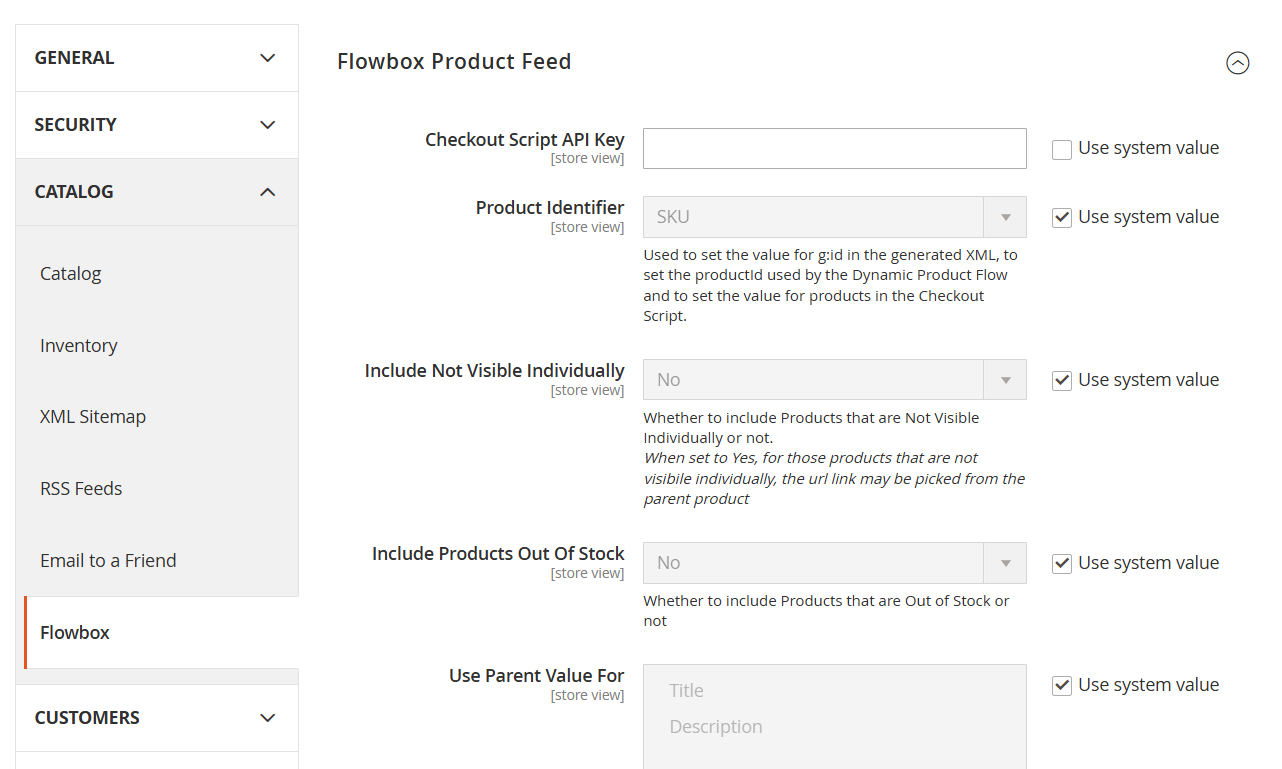
By default, all fields will be blocked by the "Use system value" checkbox. Disable it in order to edit them. The most important ones are "Checkout Script API Key" and "Product Identifier".
- Checkout Script API Key: Allows you to enable the Checkout Script, which tracks all orders executed on your site and enabled you to track Assisted sales. This API key is provided during your onboarding, please ask your Customer Success Manager (CSM) should you require it again.
- *Product Identifier: Catalog attribute you will use to identify the products of the store. It's used by Dynamic Product Flows, Checkout Script and the XML product feed. It's default value is "SKU", so in most cases you will not need to change it.
- *Include Not Visible Individually: This option allows you to determine if the products that are not visible in the store (for example, the children of configurable products) should be part of the product feed.
- *Include Products Out of Stock: This option allows you to determine whether or not Out of Stock products will be included in the product feed.
- *Use Parent Value For: Whenever possible, the value of the selected attributes will be the same as the value from the parent product to which the product belongs.
- *Custom Taxonomy Source: Allows you to determine a custom URL for the Google Taxonomy for mapping Categories of your store with it. If left blank, the module will use the default Taxonomy under the path:
https://www.google.com/basepages/producttype/taxonomy-with-ids.LanguageCode.txt
The "LanguageCode" parameter of the URL will be automatically replaced by the language code of the store.
* For most integrations, we recommend to leave the default settings on.